What Is DisplayPort Link Training?
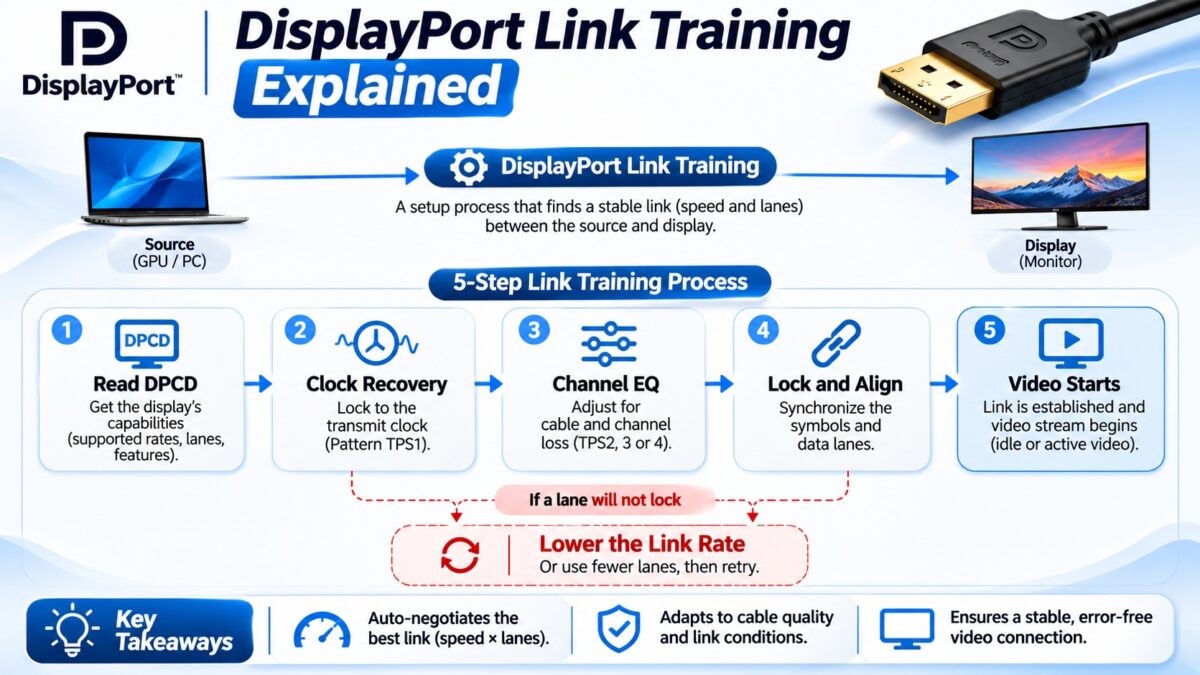
DisplayPort link training is the short test that a source and a display run when they connect, to agree on how many lanes to use, how fast to run them, and how much to boost the signal so the data arrives cleanly. The source sends known test patterns, the display reports whether it can lock onto them, and the source adjusts its settings until every lane works or runs out of options. If a setting fails, the source tries a lower link rate or fewer lanes, which is why a poor cable usually produces a lower resolution or refresh rate instead of no picture at all. The picture and sound start only after training succeeds.
Why is link training needed?
DisplayPort has no separate clock wire. The receiver has to recover the clock from the data stream itself, and the signal has to be strong enough, and shaped correctly, to survive the cable. A short cable needs little help, while a long or lossy cable needs a stronger signal. A patent description gives the typical case: with a short cable, a high bit rate is used with minimum voltage swing and no pre-emphasis, whereas with a long cable a lower bit rate is used with higher voltage swing and pre-emphasis. Link training finds the right values for each connection instead of fixing them in advance.
When does link training happen?
Training starts when the display raises Hot Plug Detect, which tells the source that a sink is present. It runs whenever a connection is made, and the source can run it again if the link is lost or the display signals a problem with a pulse on the HPD line. Our DisplayPort guide describes the whole start-up sequence.
The steps of DisplayPort link training
The procedure goes through a fixed series of steps.
- Read capabilities. The source reads the display’s DPCD registers over the AUX channel to learn the maximum lane count, the maximum lane speed, and the voltage swing and pre-emphasis levels the display supports.
- Clock recovery. The source sends training pattern 1 (TPS1) at the highest speed the display supports, with the lowest voltage swing and the lowest pre-emphasis. The display tries to recover a clock from the data and reports success for each lane in its status registers. If a lane fails, the display asks for a different swing or pre-emphasis and the source tries again.
- Channel equalization. Once the clock is recovered, the source sends one of the more demanding patterns, TPS2, TPS3 or TPS4 (TPS4 is used for the HBR3 speed of DisplayPort 1.4). The display analyzes the distortion, adjusts its equalizer, and reports back.
- Symbol lock and lane alignment. The display confirms that it has locked onto the symbols on each lane and aligned the lanes with one another.
- Finish. When everything reports success, the source stops sending training patterns and starts sending idle patterns or the video stream.
How DisplayPort link training moves between steps
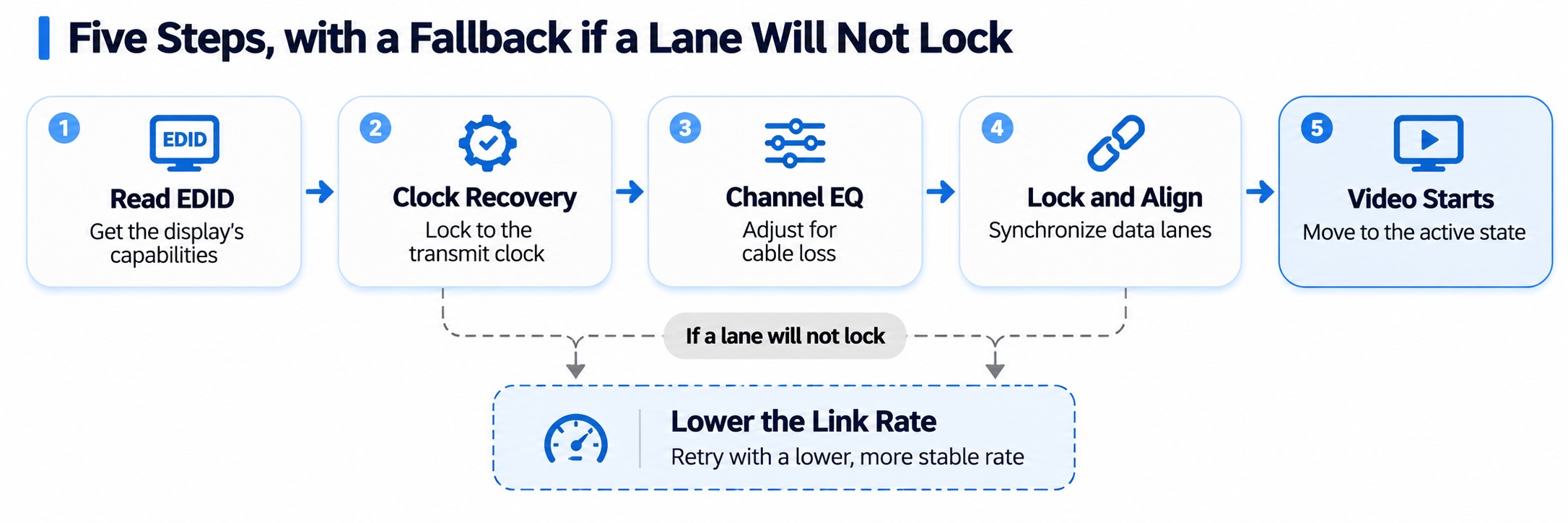
DisplayPort link training steps and fallback
The fallback is why a weak cable lowers the mode instead of breaking the link.
What are voltage swing and pre-emphasis?
These are the two dials the source adjusts while training:
- Voltage swing sets how strong the transmitted signal is.
- Pre-emphasis adds overshoot to the signal edges, which compensates for the high-frequency loss in a cable.
Together they set the strength of the transmitted signal, and they also affect power consumption. Both have levels from 0 to 3, which the source writes to per-lane registers in the display (the TRAINING_LANE0_SET to TRAINING_LANE3_SET registers). The display can request that the source raise or lower them, based on what it sees.
What happens when training fails?
The source works its way down a list of options. If a lane can’t be locked at the current speed, the source can reduce the link rate, for example from HBR3 to HBR2, or the number of lanes, and then start again. The usual result for a user:
- a lower resolution or refresh rate than the monitor is rated for,
- a drop from 10-bit to 8-bit color,
- HDR turning off, or
- in the worst case, a black screen.
For consumers the most common causes are a cable that is too long or not certified for the speed, a damaged cable or connector, a passive adapter, and a dock or switch in the chain. Engineers also check things such as the board layout and the transmitter settings, which the user can’t change. See our guides to DisplayPort cable certification and cable length.
What is fast link training?
Some links skip the back-and-forth. In fast link training, the source sends TPS1 for about a millisecond and then TPS2 for about a millisecond, without reading status from the display over the AUX channel. It relies on settings that are already known, which makes it quick, but a source can use it only with sinks that are marked as supporting it. One FPGA vendor’s documentation describes this behavior and says the function fails if the display does not advertise that support.
What is an LTTPR?
A Link Training-Tunable PHY Repeater (LTTPR) is a repeater or retimer that sits in the path, for example in a dock or an active cable, and trains each segment of the link separately. The source trains the first hop, then the next, and so on, so each hop can be tuned to its own cable. DisplayPort 2.x links that use 128b/132b channel coding require the source to set the LTTPR to non-transparent mode. This is why DP80LL active cables, which use a link redriver, can reach longer distances.
How is link training different in DisplayPort 2.x?
DisplayPort 2.0 and 2.1 added the UHBR link rates with 128b/132b channel coding, which come with new training patterns and sequences. DisplayPort 2.x can also fall back to DisplayPort 1.4 operation when a device or cable doesn’t support the new modes. The basic idea, lock the clock, equalize, align, and fall back if it fails, is the same.
What can you do about link training problems?
- Use a certified cable with the logo for your link rate.
- Shorten the cable, or use an active or optical cable for long runs.
- Remove adapters, docks and switches and test the direct connection.
- Reconnect and restart. Unplugging the cable makes the source retrain from the start.
- Update firmware and drivers on the monitor, dock and graphics card.
- Try another port on the graphics card or monitor.
Common questions
What is link training in DisplayPort?
The setup process in which the source and display agree on the lane count, link rate, voltage swing and pre-emphasis.
What are TPS1 and TPS2?
Training patterns. TPS1 is used for clock recovery, and TPS2 (or TPS3 and TPS4) is used for channel equalization.
Why did my DisplayPort drop to a lower resolution?
Link training may have failed at the higher rate because of the cable, an adapter or a dock, so the source chose a lower rate or fewer lanes.
Does link training happen every time I turn on the monitor?
It happens whenever the link is set up, including when you connect the cable and when the display signals that the link needs retraining.
What is the difference between clock recovery and channel equalization?
Clock recovery locks the receiver onto the data stream. Channel equalization then tunes the receiver and the transmitter to compensate for loss in the cable.
Is HDMI link training the same?
HDMI 2.1’s FRL mode has its own link training, which is described in our FRL guide. Older TMDS links don’t need it.