What Are the Different USB Connector Types?
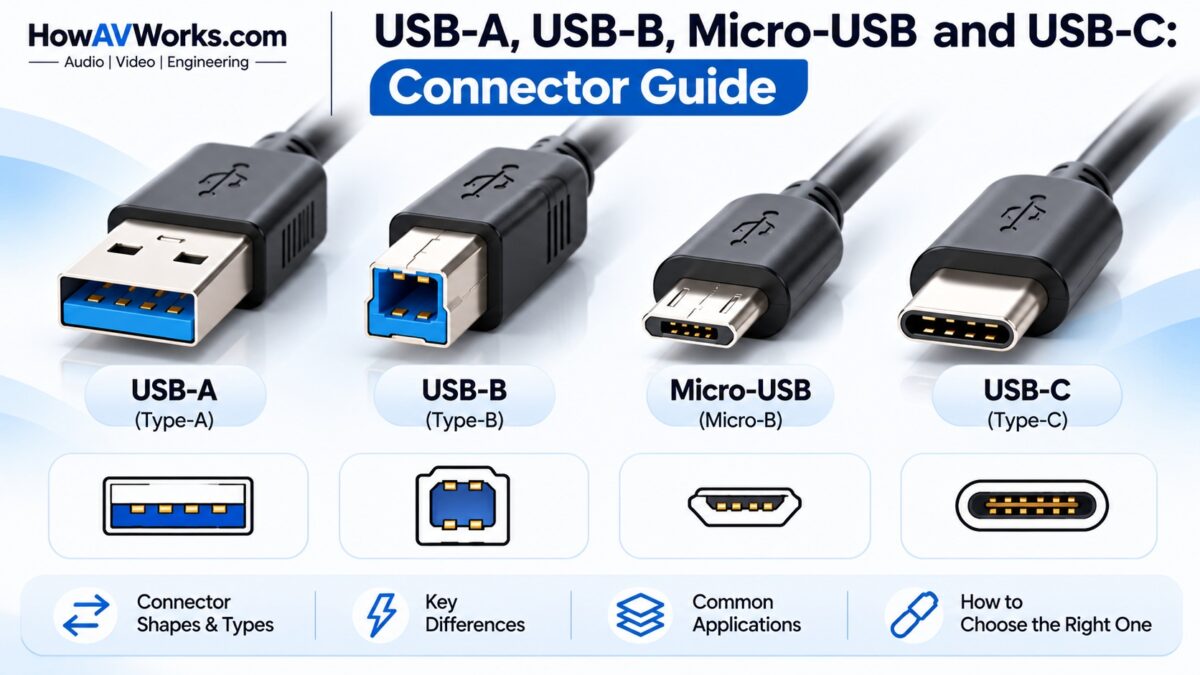
The main USB connector types are USB-A (the flat rectangular plug on computers and chargers), USB-B (the squarish plug on printers), Mini-USB and Micro-USB (small, older plugs for phones and cameras) and USB-C (the small, reversible, oval plug on modern devices). The original USB specification defined only two connectors, A and B, and the smaller Mini and Micro sizes were added later for portable devices. USB-C, finalized by the USB Implementers Forum in August 2014, is a 24-pin reversible connector that replaces all of them. The connector tells you the shape of the plug, not the speed: a USB-C port can be slow USB 2.0, and a USB-A port can be fast USB 3.x.
USB connector types at a glance
| Connector | Shape | Pins | Reversible? | Typical use | Status |
| USB-A (Standard-A) | Flat rectangle | 4 (USB 2.0) or 9 (USB 3.x) | No | Computers, chargers, flash drives, keyboards | Still very common |
| USB-B (Standard-B) | Square with beveled corners | 4 (USB 2.0) or 9 (USB 3.x) | No | Printers, scanners, some audio gear | Legacy, still on printers |
| Mini-USB (Mini-B) | Small trapezoid | 5 | No | Older cameras, MP3 players | Largely obsolete |
| Micro-USB (Micro-B) | Small, flat trapezoid | 5 | No | Older Android phones, accessories | Legacy |
| Micro-B USB 3.0 | Micro-B with an extra section | 10 | No | External hard drives | Legacy |
| USB-C | Small oval, symmetrical | 24 | Yes | Phones, laptops, tablets, monitors, chargers | The current standard |
USB-A
USB-A is the flat, rectangular connector found on computers, wall chargers, hubs, flash drives, keyboards and mice. It goes in only one way round, which is why it is famously hard to plug in on the first try. A USB 2.0 Type-A connector has 4 pins, and a USB 3.x Type-A connector adds extra pins for a total of 9. USB 3.x plugs are often blue inside, which helps tell them apart from the older ones, but that color is a convention and not a guarantee.
USB-B
USB-B (Standard-B) is a squarish connector with beveled corners, most often seen on printers and scanners, and the device end of the classic “A to B” cable. A USB 3.x version is larger and has extra pins. Its square shape prevents mismating, and it doesn’t go in reversed either.
Mini-USB and Micro-USB
Mini-USB (Mini-B) and Micro-USB (Micro-B) were designed for small portable devices. Mini-B has 5 pins and is now largely obsolete, found on old cameras and MP3 players. Micro-B also has 5 pins, with an ID pin for USB On-The-Go (OTG), and was the standard on Android phones before USB-C. Neither one is reversible. The USB 3.0 version of Micro-B is wider, because it adds a second section with 5 more pins for the SuperSpeed signals, and it is used on external hard drives.
USB-C
USB-C, formally USB Type-C, is a 24-pin connector that is the same shape from either side, so there is no wrong way to plug it in. The USB Type-C 1.0 specification was published in August 2014, and the connector is also standardized as IEC 62680-1-3. It is a connector, not a protocol, so a USB-C port can carry anything from USB 2.0 to USB4, and it can also carry video through DisplayPort Alt Mode. Combined with USB Power Delivery 3.1, it can supply up to 240 W at 48 V. Our USB-C pinout guide shows what the 24 pins do.
How big is each USB connector?
USB-C is slightly larger than Micro-B, with a receptacle about 8.4 mm wide and 2.6 mm high, which is small enough for phones and thin laptops.
USB connector sizes
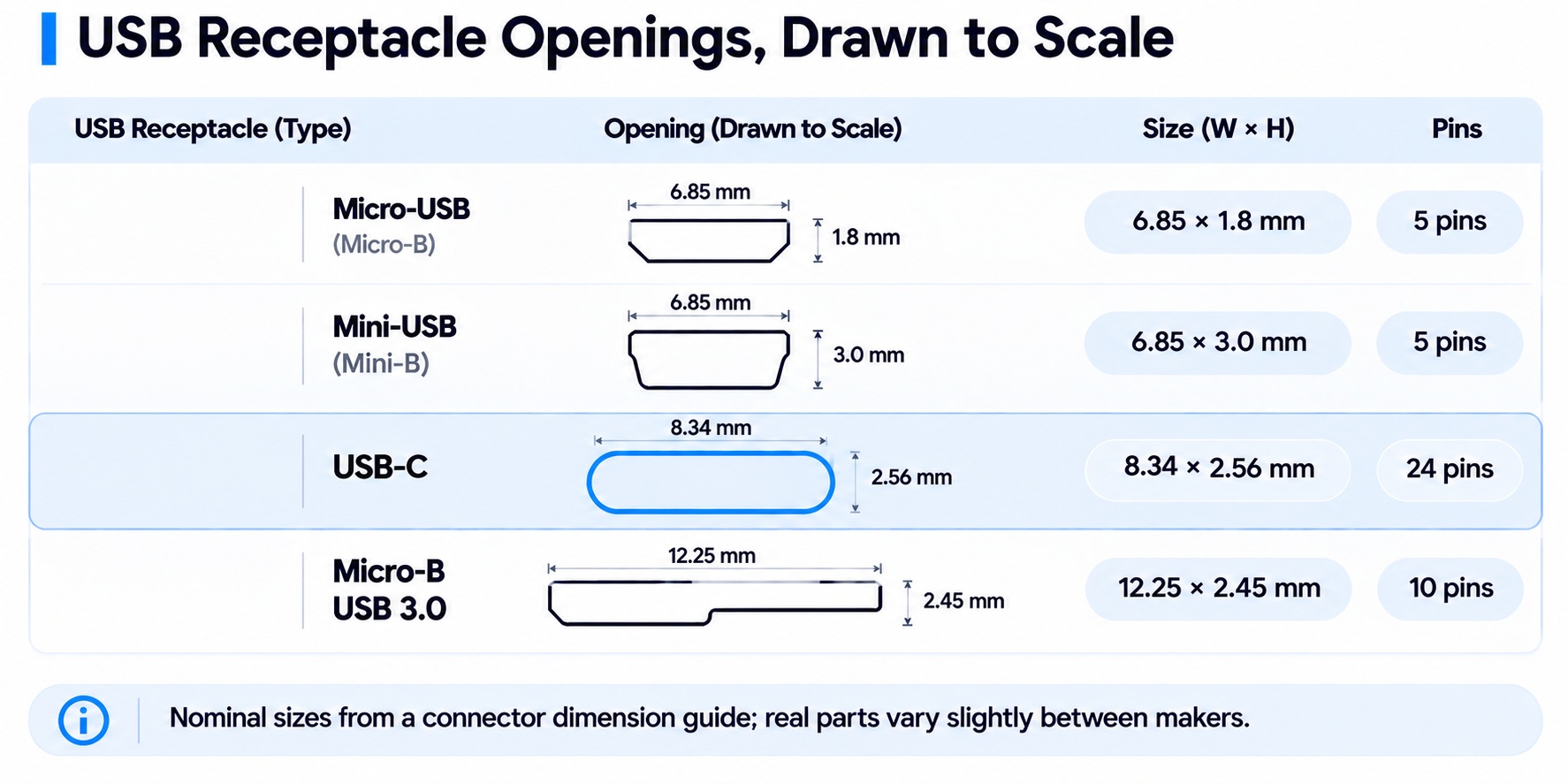
USB receptacle sizes drawn to scale
USB-C sits between Micro-B and the wider Micro-B USB 3.0 plug.
How do you tell USB connectors apart?
- Rectangular and flat: USB-A.
- Square with beveled corners: USB-B.
- Small trapezoid, slightly taller: Mini-USB.
- Small, thin and flat, one side tapered: Micro-USB. If it has a second wider section, it is the USB 3.0 version.
- Small oval that looks the same upside down: USB-C.
Which USB cable do you need?
Match the connector on each device:
- A computer or charger with USB-A to a modern phone: USB-A to USB-C.
- A modern laptop to a modern phone or drive: USB-C to USB-C.
- An older phone or accessory: USB-A to Micro-USB.
- A printer: USB-A to USB-B.
- An old device to a USB-C computer: a cable with a Standard-B, Mini-B or Micro-B plug on the device end and a USB-C plug on the other.
The connector doesn’t tell you the speed or the power rating of the cable, so check those separately. Our USB versions guide explains the speeds.
Is USB-C replacing the other connectors?
Yes. USB-C was designed to supersede all earlier USB connectors, and it is replacing the others on phones, laptops and tablets. USB-A will remain on computers, chargers and accessories for a long time, because of the huge number of existing devices, and USB-B survives mainly on printers.
Common questions
What is the difference between USB-A and USB-C?
USB-A is a flat rectangular, non-reversible connector found on computers and chargers. USB-C is a small, reversible oval connector with 24 pins that can carry more power, faster data and video.
Is Micro-USB the same as USB-C?
No. Micro-USB is an older, non-reversible 5-pin connector. USB-C is newer, larger, reversible and has 24 pins.
Are all USB-C cables the same?
No. The connector is the same, but cables differ in the speed, power and video they support. Check the cable’s specifications.
Is USB-C always fast?
No. A USB-C port can be as slow as USB 2.0. The connector shape doesn’t set the speed.
Which USB connector is reversible?
Only USB-C. USB-A, USB-B, Mini-USB and Micro-USB all go in one way.
Why is USB-A so hard to plug in?
It isn’t reversible and often has no clear marking on the plug, so it works on one orientation only.
Keep learning
- USB Versions and Speeds Explained: USB 2.0, 3.x and USB4 (CON-USB-002)
- USB-C vs. Thunderbolt: What’s the Difference? (CON-USB-003)
- USB-C Pinout: All 24 Pins Explained (CON-USB-006)
- DisplayPort Over USB-C: How Alt Mode Works (CON-DisplayPort-008)