How Does DisplayPort Alt Mode Work?
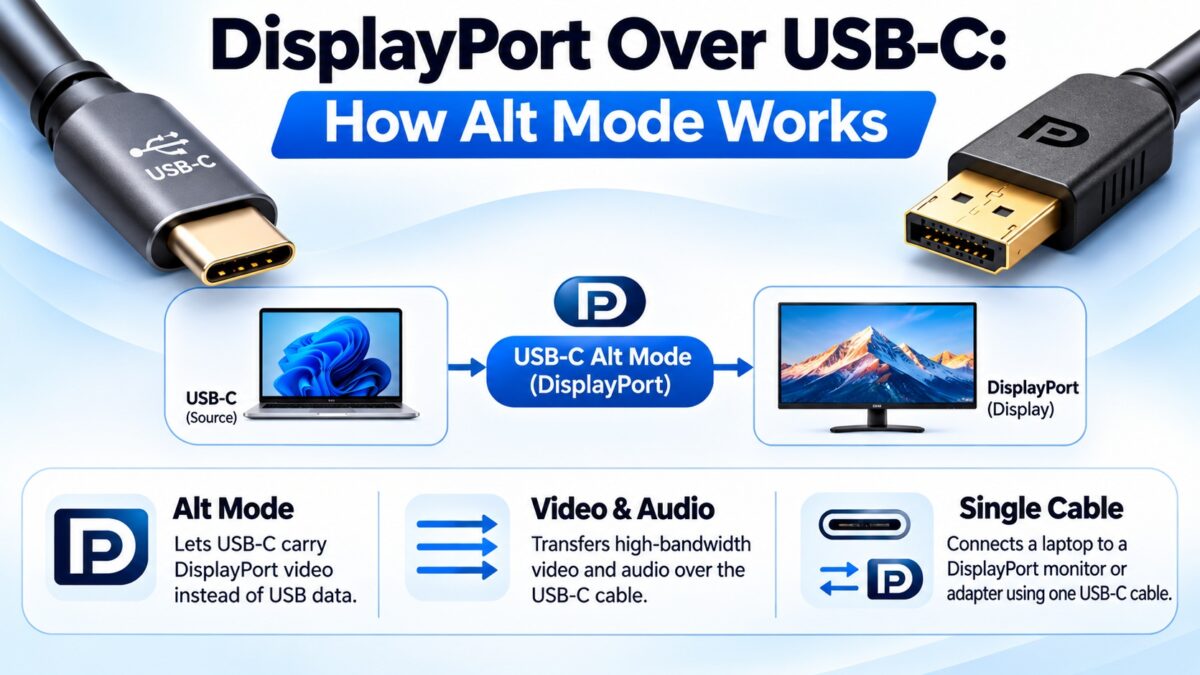
DisplayPort Alt Mode sends DisplayPort video over a USB-C cable by repurposing two or all four of the connector’s high-speed data lanes for DisplayPort signals. The pins that normally carry the auxiliary channel go to the sideband pins (SBU1 and SBU2), and Hot Plug Detect is sent as a message through USB Power Delivery. When all four lanes carry DisplayPort, the USB-C cable gives full DisplayPort performance plus USB 2.0 data and power. When only two lanes carry DisplayPort, the other two can carry USB 3.x data at the same time, which is how a single cable can drive a monitor and also connect its USB hub.
What is an alternate mode?
USB-C is a connector that can carry more than USB. It defines “alternate modes” that let a port switch some of its pins over to a different protocol once the two ends have agreed to it. VESA announced the DisplayPort Alt Mode in September 2014. It works because DisplayPort, like USB, sends data in packets over high-speed differential pairs, so the same pairs can carry either.
How are the USB-C lanes shared?
A USB-C connector has four high-speed differential lane pairs, which USB 3.x uses for its SuperSpeed data. In DisplayPort Alt Mode they can be split in two ways:
- Four lanes for DisplayPort. All four lanes carry DisplayPort video, so you get the maximum video bandwidth. USB 2.0 data still works on its own separate pins, but there is no SuperSpeed USB.
- Two lanes for DisplayPort, two for USB. Half the lanes carry DisplayPort and the other half carry SuperSpeed USB (USB 3.x), so the cable can drive a display and connect a USB hub or storage at the same time.
The other parts of the connector keep their jobs. The USB 2.0 pair (D+ and D−) and power (VBUS and ground) stay available, the CC pins handle the connection and the USB Power Delivery messages, and the two SBU pins carry the DisplayPort AUX channel.
How USB-C lanes are shared
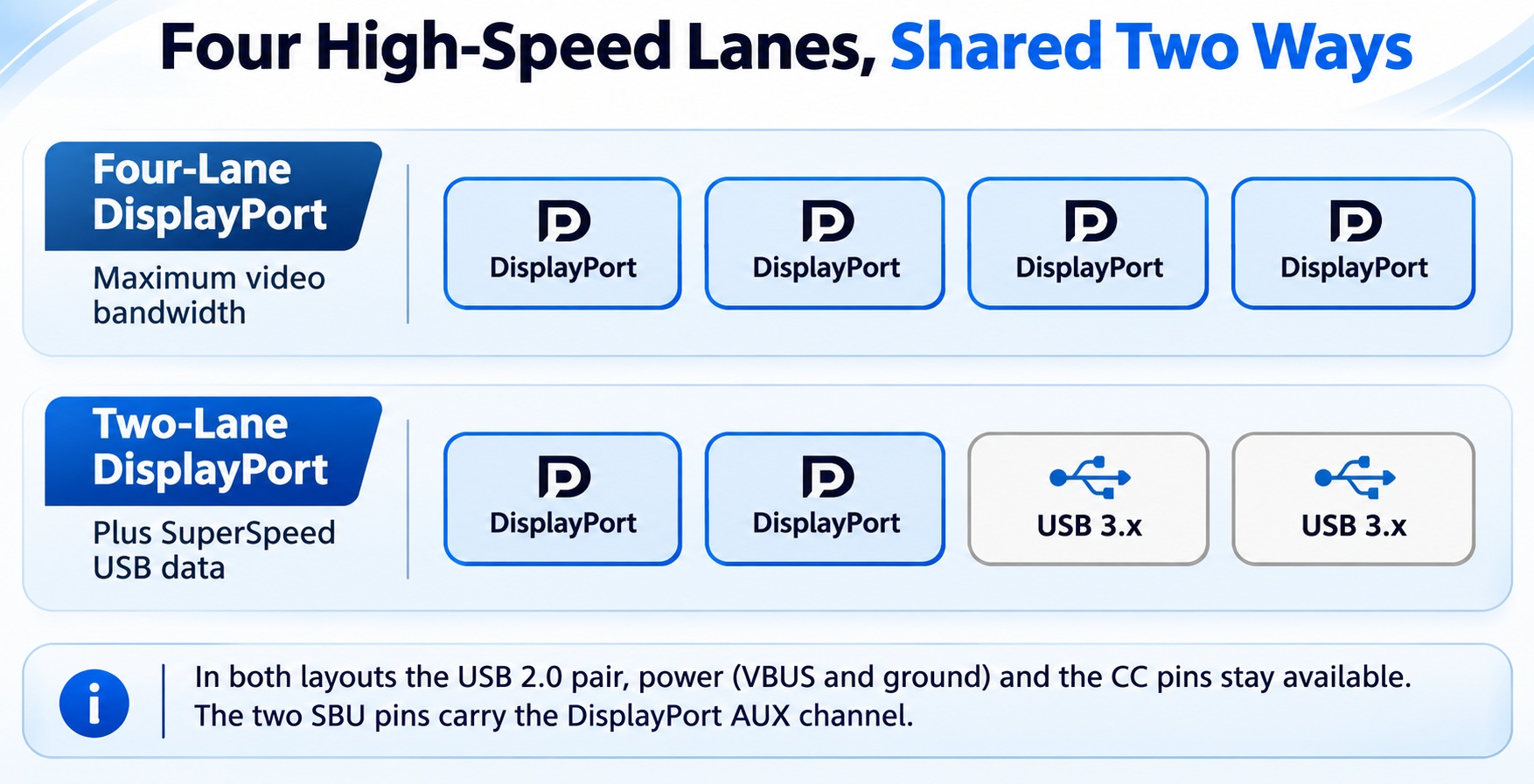
USB-C high-speed lanes shared between DisplayPort and USB
Two lanes cost half of the video bandwidth but keep SuperSpeed USB working.
How fast is DisplayPort Alt Mode?
The speed depends on the version and on how many lanes carry DisplayPort.
| Alt Mode version | Lanes for DisplayPort | DisplayPort bandwidth | What is left for USB |
| Alt Mode 1.x (DisplayPort 1.3 and 1.4) | Four | Up to 32.4 Gbps (HBR3, 8.1 Gbps per lane) | USB 2.0 only |
| Alt Mode 1.x | Two | Up to 16.2 Gbps | SuperSpeed USB on the other two lanes |
| Alt Mode 2.0 (April 2020) | Four | Up to 80 Gbps (UHBR20) | USB 2.0 only |
| Alt Mode 2.0 | Two | Up to 40 Gbps | SuperSpeed USB data at the same time |
With four lanes, a full-featured USB-C cable can deliver the performance of a regular DisplayPort 1.4 cable, which is four lanes at 8.1 Gbps for 32.4 Gbps in total. DisplayPort Alt Mode 2.0 matches DisplayPort 2.0 spec for spec, including the highly efficient 128b/132b coding, with a maximum payload of 77.37 Gbps across four lanes, enough for an 8K display at 60 Hz with HDR. It was designed to work with USB4.
What cable do you need?
Not every USB-C cable can carry DisplayPort.
- A USB 2.0-only USB-C cable can’t carry video. It doesn’t implement the high-speed lanes or the SBU pins that DisplayPort needs.
- A full-featured USB-C cable that supports the high-speed lanes is needed for four-lane DisplayPort and for USB 3.x at the same time. Cables with an e-marker chip can also advertise what they support.
- For DisplayPort Alt Mode 2.0, the cables must be able to redrive DisplayPort 2.0 signals and run with all four lanes in one direction, which USB4 cables do not do by default. Adapters from USB-C to DisplayPort also need an active redriver at these speeds, because the signaling is tighter than in version 1.0, which could work with passive adapters.
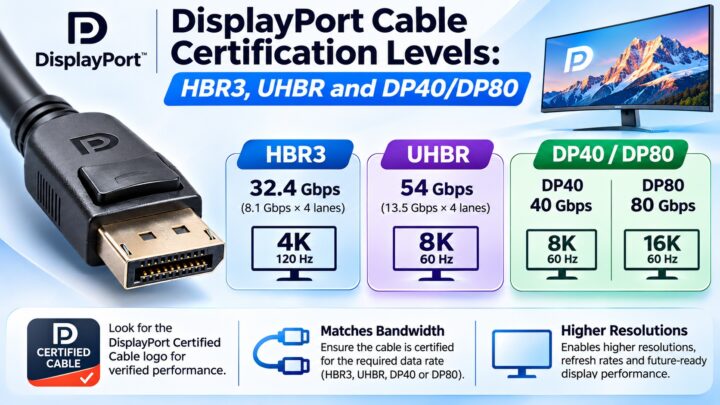
See our DisplayPort cable certification guide for the DP40, DP54 and DP80 labels.
Which USB-C ports support DisplayPort Alt Mode?
Not all of them. USB-C defines the connector, not the features behind it. Thunderbolt 3, Thunderbolt 4 and USB4 ports support DisplayPort video, but many plain USB-C ports on laptops, phones and tablets do too, and some don’t. Check the device’s specifications for DisplayPort or video output, or look for a DisplayPort or Thunderbolt logo beside the port.
How do you connect a laptop to a monitor over USB-C?
- Check that the laptop’s USB-C port supports DisplayPort Alt Mode.
- Use a USB-C to DisplayPort cable if the monitor has a full-size DisplayPort input, or a USB-C to USB-C cable if the monitor has a USB-C input with DisplayPort support.
- Select the right input on the monitor.
- Check the resolution and refresh rate in your display settings.
Why is my USB-C video only 4K at 30 Hz?
This is a common surprise. If the monitor’s USB hub is switched to a SuperSpeed USB 3.x mode, the connection may move to two lanes for DisplayPort and two for USB, and two lanes may not have the bandwidth for 4K at 60 Hz. Switching the monitor to a USB 2.0 mode, or to a mode that gives all four lanes to DisplayPort, can restore the higher refresh rate. Check the monitor’s menu for a setting such as “USB 3.0” or “high resolution” mode.
Common questions
What is DisplayPort Alt Mode?
A mode of USB-C that lets the port carry DisplayPort video signals over its high-speed lanes.
Does DisplayPort over USB-C have the same quality as a normal DisplayPort cable?
Yes, with four lanes and a full-featured cable it can reach the same bandwidth. With two lanes the DisplayPort bandwidth is halved.
Can USB-C do 4K at 60 Hz?
Yes, if the port supports DisplayPort Alt Mode and the cable and monitor are suitable. With four lanes it can do much more.
Does every USB-C cable carry video?
No. USB 2.0-only cables don’t, and some cables don’t support the high-speed lanes. Use a full-featured USB-C cable.
Is Thunderbolt the same as DisplayPort Alt Mode?
No. Thunderbolt 3 and 4 are separate technologies that also support DisplayPort video over USB-C, along with much faster data transfer.
What carries the DisplayPort AUX channel over USB-C?
The two sideband use (SBU) pins.
How is Hot Plug Detect sent over USB-C?
As a message in the USB Power Delivery protocol.
Keep learning
- DisplayPort Connector Types: Full-Size, Mini DisplayPort and USB-C (CON-DisplayPort-002)
- What Is DisplayPort? A Beginner’s Guide (CON-DisplayPort-001)
- DisplayPort Versions Compared: 1.2 vs. 1.4 vs. 2.1 (CON-DisplayPort-005)
- DisplayPort Cable Certification Levels: HBR3, UHBR and DP40/DP80 (CON-DisplayPort-010)
- USB-C vs. Thunderbolt: What’s the Difference? (CON-USB-003)
- USB-C Pinout: All 24 Pins Explained (CON-USB-006)
2 comments