
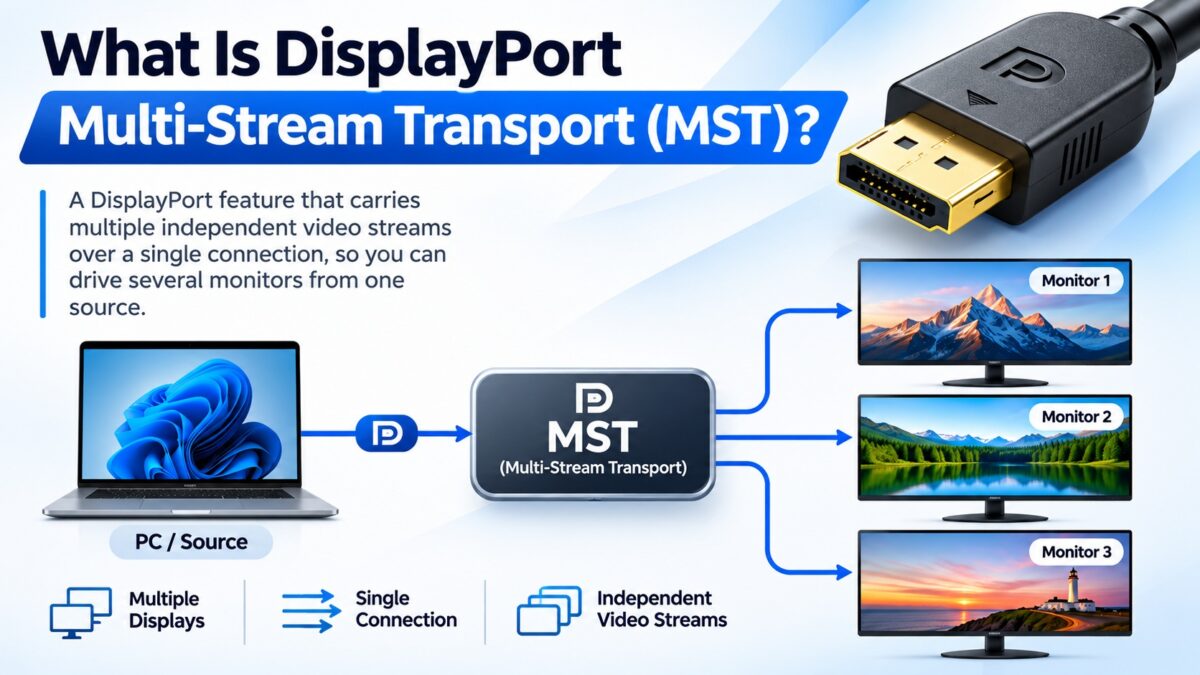
What Is DisplayPort Multi-Stream Transport (MST)?
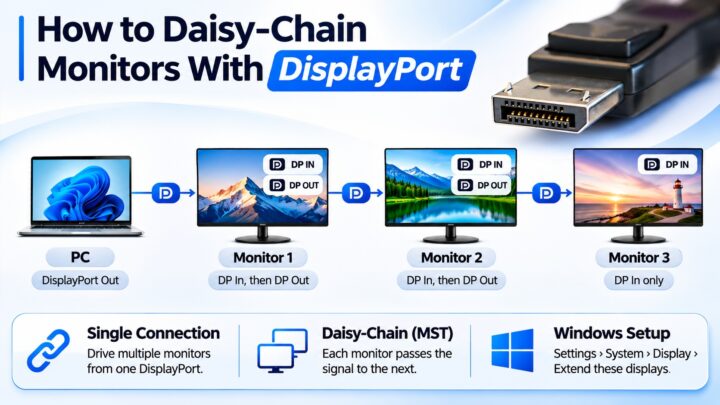
DisplayPort Multi-Stream Transport (MST) is a feature, introduced with DisplayPort 1.2, that lets one DisplayPort output send several independent video streams to several monitors over a single cable. You can use it in two ways: by daisy-chaining monitors, where each monitor passes the signal on to the next through a DisplayPort out port, or with an MST hub that splits one DisplayPort connection into several outputs. All the monitors share the bandwidth of that one link, so the number of screens and their resolution are limited by it. The opposite, normal mode, with one stream to one display, is called Single-Stream Transport (SST).
MST vs. SST
DisplayPort 1.2 included two transport modes. When MST arrived, the default way of sending one stream to one monitor was renamed SST.
| SST (Single-Stream Transport) | MST (Multi-Stream Transport) | |
| Streams | One video stream to one display | Several independent streams over one connection |
| Displays per port | One (a second display can only mirror) | Several, by daisy chain or hub |
| Bandwidth | The display gets the whole link | The displays share the link |
| Best for | Gaming and demanding single displays | Multi-monitor desks and docks |
| Support | All DisplayPort versions | DisplayPort 1.2 and later |
How does MST work?
DisplayPort sends data in packets, which is what makes MST possible. The source combines the video streams for the different monitors into one stream of packets on the main link. A downstream device then separates them again, which is why it is sometimes described as an “unbundling” device. That device is either an MST hub or a chain of MST-capable monitors, each of which takes its own stream and passes the rest on.
MST was also used early in the days of 4K. Most early 4K monitors at 60 Hz, such as the Sharp PN-K321, ASUS PQ321Q and Dell UP2414Q, used MST to treat two halves of the display as separate streams and put them together on one 4K screen. Modern 4K monitors use SST with a scaler that handles the full 4K signal in one stream.
Daisy chain vs. MST hub
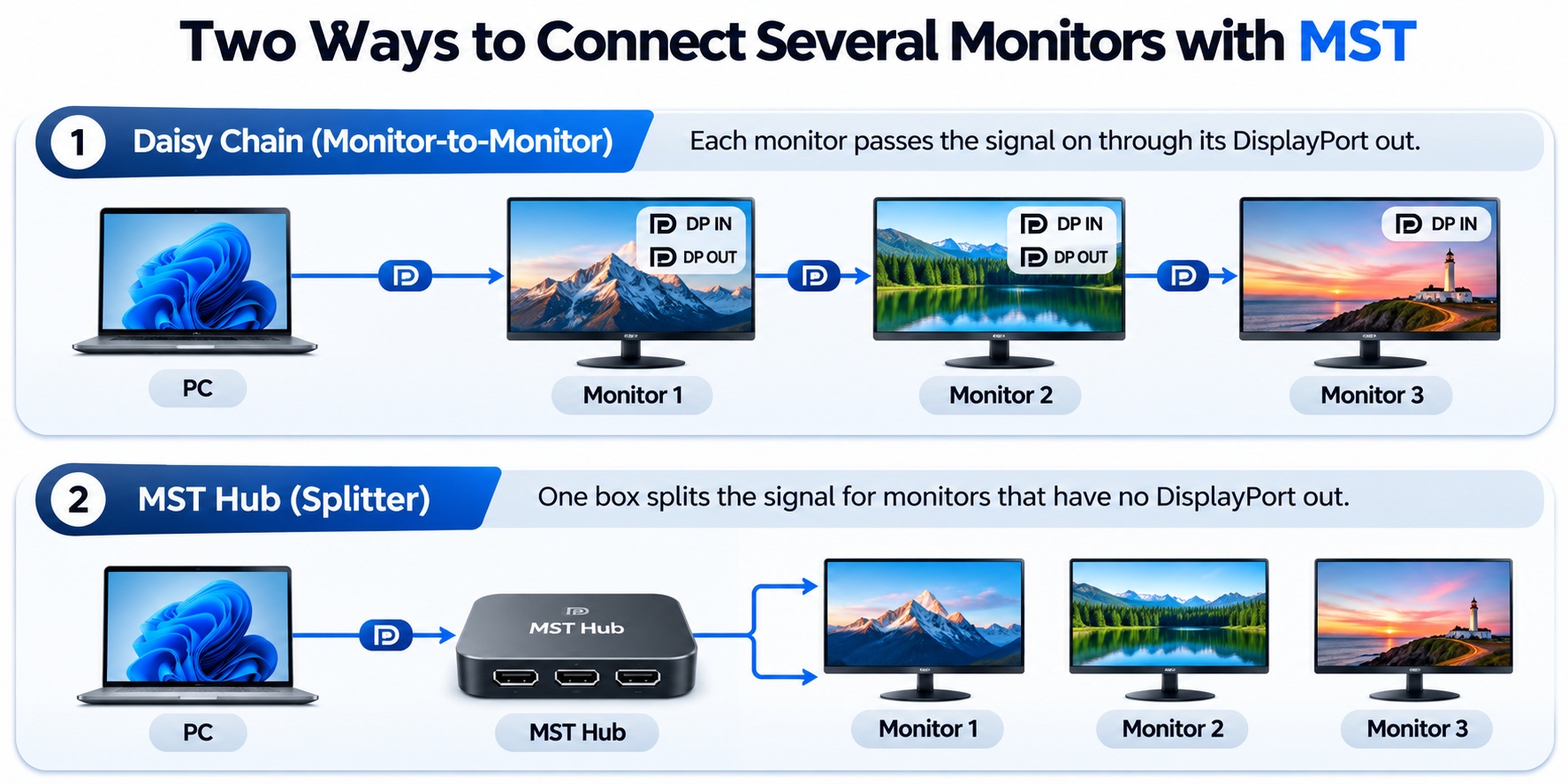
DisplayPort MST · daisy chain and hub layouts
In both layouts the monitors share the bandwidth of the one connection from the PC.
What do you need for MST?
- A source with DisplayPort 1.2 or later that supports MST, such as a graphics card, or a laptop with DisplayPort over USB-C or Thunderbolt.
- For a daisy chain: the first monitor must have a DisplayPort in port and a DisplayPort out port, both supporting DisplayPort 1.2, and the later monitors need a DisplayPort in port. MST mode must be turned on in the first monitor’s menu.
- For an MST hub: the hub must support enough bandwidth for your displays. A hub is the answer when the monitors have no DisplayPort out port.
- DisplayPort cables rated for the resolution and refresh rate. One vendor suggests keeping the cables between monitors to about 3 feet (about 1 meter) or less.
How many monitors can you connect with MST?
The DisplayPort 1.2 specification allows up to 63 streams in theory, but bandwidth is the real limit. All of the monitors share the link’s capacity, and the more pixels each one needs, the fewer you can connect. A vendor table for DisplayPort 1.2’s bandwidth gives these theoretical maximums:
| Resolution | At 60 Hz | At 30 Hz |
| 1920 × 1080 or 1920 × 1200 | 4 monitors | 8 monitors |
| 2560 × 1600 | 2 monitors | 4 monitors |
| 4K | 1 monitor | 2 monitors |
DisplayPort 1.4 with Display Stream Compression, and DisplayPort 2.x with its much higher bandwidth, allow more or higher-resolution monitors, but the monitors, hub and graphics card must all support the features involved. Two 4K monitors at 60 Hz typically need DisplayPort 1.4, DSC and an MST hub designed for the bandwidth.
Does MST work on a Mac?
Historically, no. Several guides state that macOS supports only SST, so a Mac can send one extended display per DisplayPort output and extra monitors on an MST hub or daisy chain only mirror the first. Windows and ChromeOS devices with DisplayPort 1.2 or later, including over USB-C, can use MST. Apple’s support has changed over the years, so check the current documentation for your Mac before buying a hub or monitors for this purpose.
What if MST isn’t working?
- Check that MST is turned on in the first monitor’s on-screen menu.
- Check that the first monitor has a DisplayPort out port that supports MST. If it doesn’t, use an MST hub.
- Check the bandwidth. If the monitors flicker, disconnect, or run at a lower resolution than expected, you may be asking the link for more than it can carry. Lower the resolution or refresh rate, or use fewer monitors.
- Check the cables and ports. Use cables rated for your resolution, and plug into the correct ports (in and out).
- Check the source. The graphics card or laptop port must support MST.
Common questions
What does MST stand for?
Multi-Stream Transport.
What is the difference between MST and SST?
SST sends one stream to one display. MST sends several streams over one connection, so several displays can share a port.
Can I daisy-chain any monitors?
No. The monitors must support DisplayPort 1.2 or later with a DisplayPort out port that supports MST, and MST must be turned on.
Does MST reduce picture quality?
Not by itself. The streams are not compressed, but the displays share the link’s bandwidth, which limits the resolution and refresh rate.
Does HDMI have MST?
No. HDMI has no equivalent, so you can’t daisy-chain HDMI monitors. Docks that offer several HDMI outputs use DisplayPort MST internally.
Does MST work over USB-C?
Yes, if the USB-C port supports DisplayPort 1.2 or later in Alt Mode, or Thunderbolt.
Keep learning
- How DisplayPort Works: Main Link, AUX Channel and Hot Plug (CON-DisplayPort-006)
- How to Daisy-Chain Monitors With DisplayPort (CON-DisplayPort-009)
- DisplayPort Versions Compared: 1.2 vs. 1.4 vs. 2.1 (CON-DisplayPort-005)
- DisplayPort vs. HDMI for Monitors and Gaming (CON-DisplayPort-003)
- DisplayPort Over USB-C: How Alt Mode Works (CON-DisplayPort-008)
1 comment