
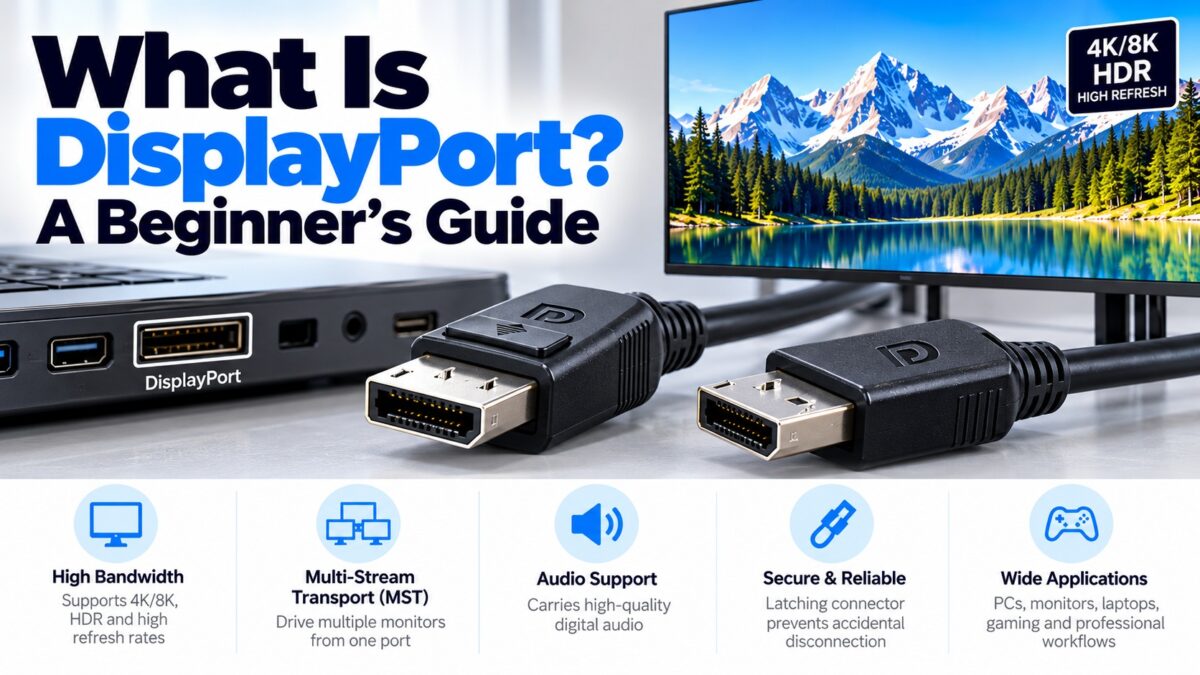
What Is DisplayPort?
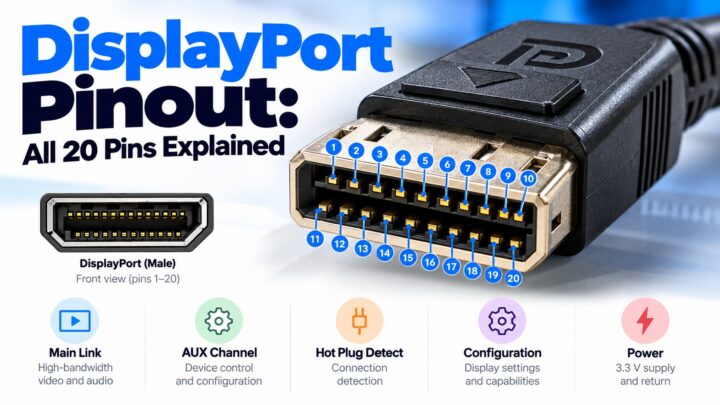
DisplayPort (DP) is a digital interface that connects a video source, such as a computer or graphics card, to a display, and it carries audio alongside the video. It was designed by VESA, the Video Electronics Standards Association, and version 1.0 was approved on 3 May 2006. You will find it mostly on PC monitors, graphics cards, laptops and workstations, and it is designed to replace the older DVI and VGA connections. A full-size DisplayPort connector has 20 pins, a latch that holds it in place, and a single sloping corner so it can only go in one way. DisplayPort can also be carried over a USB-C port through DisplayPort Alt Mode.
What can DisplayPort carry?
DisplayPort sends several kinds of data over the same cable:
- Video over one, two or four data lanes called the main link. The number of lanes in use depends on the cable and the devices.
- Audio, sent alongside the video, so no separate audio cable is needed.
- Control and setup data over a separate two-way auxiliary channel.
- Content protection (HDCP) and, in later versions, Display Stream Compression (DSC) for very high resolutions.
- Several displays from one port, through Multi-Stream Transport (MST), which allows daisy-chaining monitors on a single connection.
DisplayPort uses a micro-packet protocol, which means the data is sent in small packets, similar in concept to network traffic. It also has a mandatory dual-mode feature so that a simple passive adapter can drive a DVI or HDMI display from a DisplayPort source in many cases.
How DisplayPort connects a source and a display
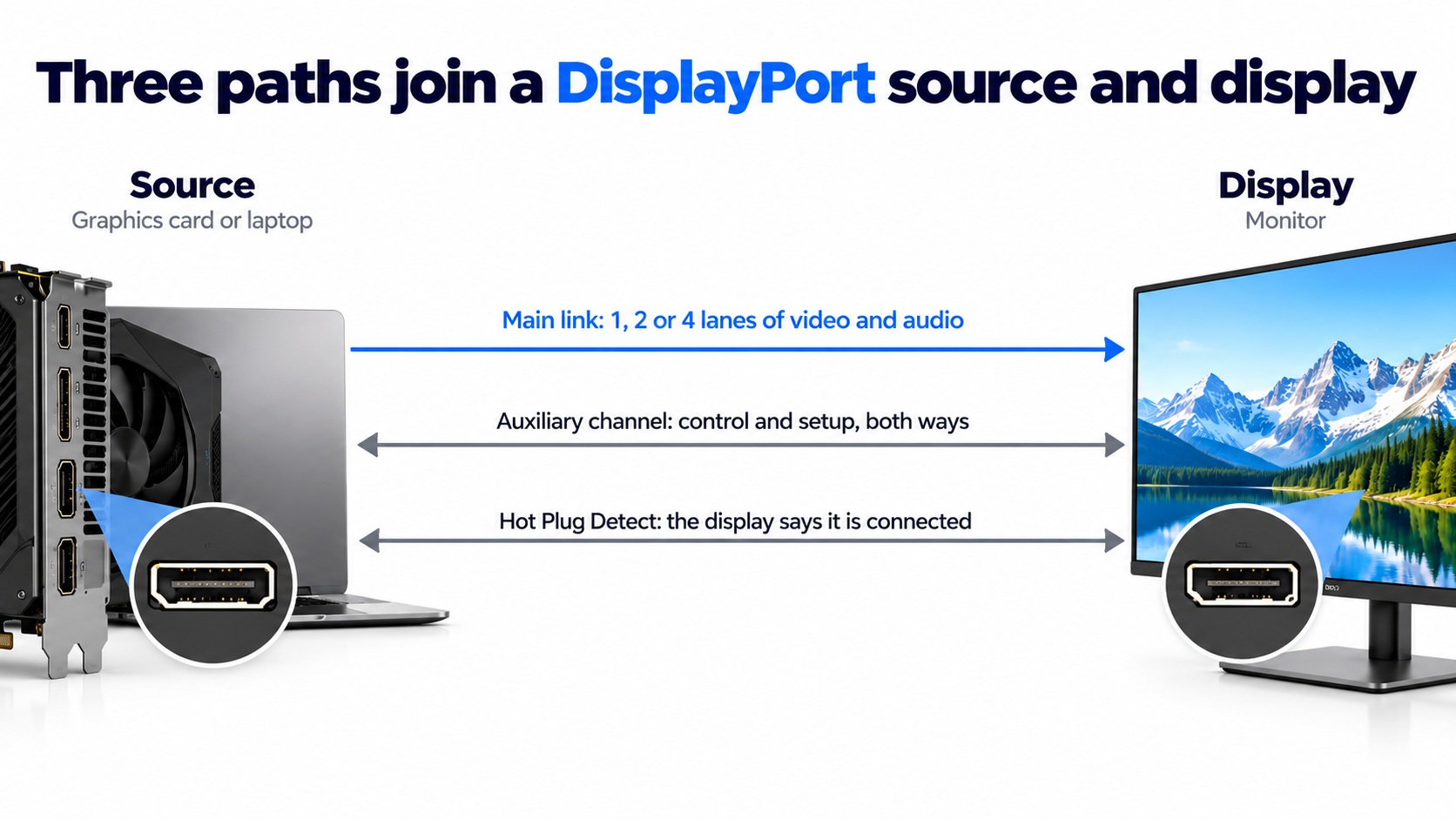
DisplayPort main link, auxiliary channel and hot plug detect
The main link carries the picture and sound in one direction; the other two paths handle setup.
DisplayPort versions at a glance
Each version has increased the bandwidth and added features. The bandwidth figures are the raw link rates unless stated otherwise.
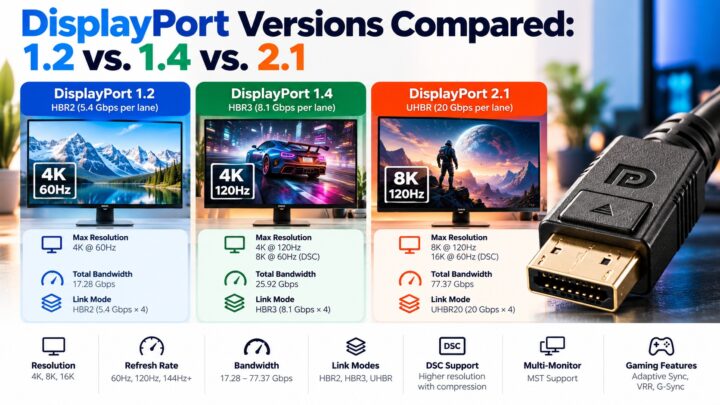
| Version | Year | Top bandwidth | Headline additions |
| DisplayPort 1.0 | 2006 | 10.8 Gbps | First release |
| DisplayPort 1.1 | 2007 | 10.8 Gbps | HDCP and support for fiber optic cables |
| DisplayPort 1.2 | About 2010 | 21.6 Gbps (HBR2, 5.4 Gbps per lane) | Higher bandwidth, 4K at 60 Hz, MST, Mini DisplayPort recognized |
| DisplayPort 1.3 | 2014 | 32.4 Gbps (HBR3, 8.1 Gbps per lane) | A major jump in bandwidth |
| DisplayPort 1.4 | About 2016 | 32.4 Gbps | DSC; 1.4a (April 2018) updated it to DSC 1.2a |
| DisplayPort 2.0 | 2019 | Up to 77.4 Gbps of data | UHBR (Ultra-High Bit Rate) modes |
| DisplayPort 2.1 | October 2022 | 80 Gbps | Unified physical layer with USB4 |
| DisplayPort 2.1a | January 2024 | 80 Gbps | Updated rules for UHBR cables |
Our versions guide covers the differences in detail.
DisplayPort connector types
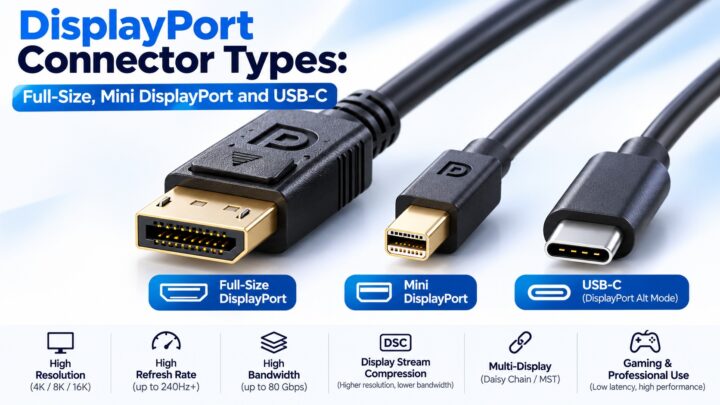
| Connector | What it is | Typical use |
| Full-size DisplayPort | 20 pins with a latch | Monitors, graphics cards, docks |
| Mini DisplayPort | A smaller, electronically compatible version developed by Apple | Older laptops and some compact computers |
| USB-C with DisplayPort Alt Mode | DisplayPort signals carried over a USB-C connector | Modern laptops, tablets and phones |
Mini DisplayPort was also the connector shape used by Thunderbolt 1 and 2 before Thunderbolt 3 changed to the USB-C shape. VESA added Mini DisplayPort to the specification in November 2009. Not every USB-C port supports DisplayPort Alt Mode, so check the specifications of your laptop.
How is DisplayPort different from HDMI?
Both carry video and audio digitally, and the picture quality is the same at the same resolution. The main differences are where they are used and what extras they offer. DisplayPort is built mainly for PCs and professional displays: it is royalty-free to implement, has a latching connector, supports daisy-chaining through MST, and is the usual choice for high-refresh gaming monitors. HDMI dominates TVs and home theater, with features such as ARC and eARC. Our comparison guides cover this in more detail.
Are DisplayPort versions compatible?
Generally yes. Newer versions are designed to work with older ones, and the connection runs at what the weakest part of the chain supports. That chain includes the source, the cable, any adapter or dock, and the display. For the highest speeds you also need a cable certified for them, such as DP80 for DisplayPort 2.1’s 80 Gbps modes.
Where is DisplayPort used?
- PC monitors, especially high-refresh-rate gaming and professional monitors
- Graphics cards, which usually have several DisplayPort outputs
- Laptops, through DisplayPort Alt Mode on USB-C
- Docks and multi-monitor desks
- Professional AV installations
TVs rarely have DisplayPort, so for a TV you will normally use HDMI.
Do you need DisplayPort?
If you have a PC and a monitor with both HDMI and DisplayPort, DisplayPort is usually the better choice, particularly for high refresh rates and adaptive sync. If you are connecting a TV, console or soundbar, use HDMI. If your laptop has only USB-C, use a USB-C cable or adapter, as long as the port supports DisplayPort Alt Mode.
Common questions
What does DisplayPort stand for?
It is the name of the interface, not an abbreviation. It is often shortened to DP.
Is DisplayPort better than HDMI?
For PC monitors, usually. For TVs and home theater, HDMI is the standard. The picture quality is the same at the same resolution.
Does DisplayPort carry audio?
Yes. Audio travels alongside the video on the same cable.
Is DisplayPort free to use?
It is described as an open, royalty-free standard, so manufacturers do not pay a per-device royalty to implement it, although VESA controls the specification.
How many pins does DisplayPort have?
The full-size connector has 20 pins, and Mini DisplayPort also has 20 pins.
Can I connect DisplayPort to HDMI?
Often yes, with a suitable adapter or cable, although going from HDMI to DisplayPort normally needs an active converter.
What is DisplayPort Alt Mode?
A standard that lets a USB-C port carry DisplayPort video, so a laptop can connect to a DisplayPort monitor with a USB-C cable.
Keep learning
- DisplayPort Connector Types: Full-Size, Mini DisplayPort and USB-C (CON-DisplayPort-002)
- DisplayPort vs. HDMI for Monitors and Gaming (CON-DisplayPort-003)
- DisplayPort Versions Compared: 1.2 vs. 1.4 vs. 2.1 (CON-DisplayPort-005)
- DisplayPort Cable Certification Levels: HBR3, UHBR and DP40/DP80 (CON-DisplayPort-010)
- HDMI vs. DisplayPort: Which Should You Use?
4 comments