Which Is Better for Gaming Monitors: DisplayPort or HDMI?
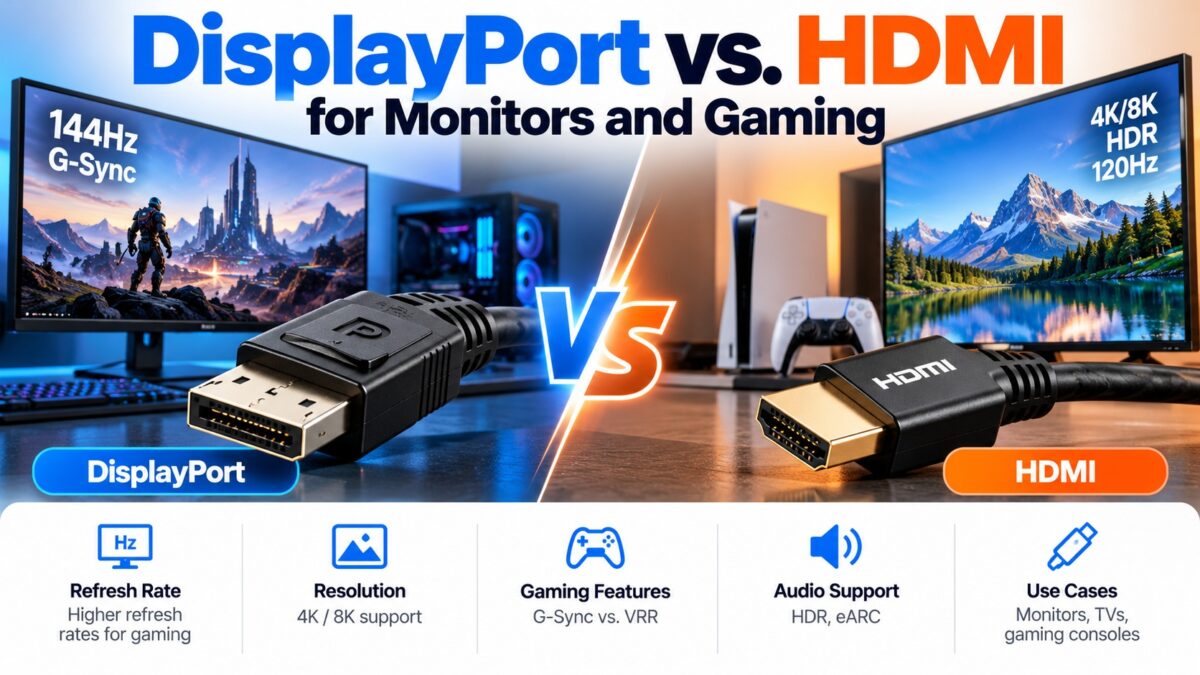
For a PC and a gaming monitor, DisplayPort is usually the better choice, and for a console, a TV or a soundbar, HDMI is the one to use. DisplayPort has long been the standard for high-refresh PC monitors, with the most reliable support for G-Sync and FreeSync and the ability to daisy-chain monitors. HDMI 2.1 has more raw bandwidth than DisplayPort 1.4 and is the only choice for PlayStation 5 and Xbox Series X, which have no DisplayPort. The version of each port matters more than the connector, so always check what your monitor and graphics card actually support.
DisplayPort vs. HDMI for gaming at a glance
| DisplayPort | HDMI | |
| Best for | PC gaming monitors, multi-monitor desks | Consoles, TVs, home theater |
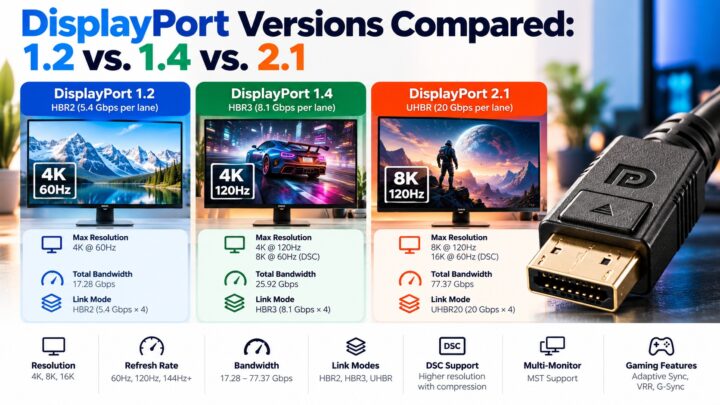
| Common gaming versions | DisplayPort 1.4 (32.4 Gbps), DisplayPort 2.1 (80 Gbps) | HDMI 2.0 (18 Gbps), HDMI 2.1 (48 Gbps) |
| Variable refresh rate | VESA Adaptive-Sync, FreeSync and G-Sync | HDMI Forum VRR, FreeSync and, on some displays, G-Sync Compatible |
| Consoles | Not supported | PS5 and Xbox Series X use HDMI 2.1 |
| Multiple monitors from one port | Yes, with MST daisy-chaining | No |
| Audio return (ARC and eARC) | No | Yes |
| Compression (DSC) | Yes, from DisplayPort 1.4 | Yes, with HDMI 2.1 |
Which refresh rates and resolutions can each handle?
The sources agree on the broad picture. The exact numbers depend on color depth and timing, so check them for your own monitor.
| Resolution and refresh rate | DisplayPort 1.4 | HDMI 2.0 | HDMI 2.1 |
| 1080p at 144 Hz or higher | Yes | Yes | Yes |
| 1440p at 144 to 165 Hz | Yes | Yes | Yes |
| 1440p at 240 Hz | Yes | No | Yes |
| 4K at 60 Hz | Yes | Yes | Yes |
| 4K at 120 to 144 Hz | With DSC above roughly 100 Hz | No | Yes, without DSC |
| 4K at 240 Hz | With DSC (some monitors) | No | With DSC |
Three points matter here:
- HDMI 2.0 is the weak point. It tops out at 4K at 60 Hz, so a monitor with only HDMI 2.0 can’t use its full refresh rate at 4K.
- DisplayPort 1.4 needs DSC for the highest 4K rates. Sources put the limit without DSC at roughly 4K at 98 to 120 Hz depending on color depth. DSC is visually lossless, but both the monitor and the graphics card must support it.
- DisplayPort 2.1 raises the ceiling. It supports 4K at 240 Hz and is found on newer graphics cards, such as the RTX 50 and RX 7000 or later series, and some Intel Arc cards.
Some monitors also have a different maximum refresh rate on each port, so check the manual before you pick one.
What about G-Sync and FreeSync?
- FreeSync works over DisplayPort and over HDMI on AMD graphics cards with compatible monitors.
- G-Sync Compatible monitors work over DisplayPort, and many newer ones also over HDMI 2.1, but DisplayPort remains the most reliable choice with Nvidia cards.
- Full G-Sync monitors use a dedicated Nvidia module that works only over DisplayPort.
VRR over HDMI has historically been less consistent on PC monitors, with some monitors not fully supporting G-Sync over HDMI even when they have an HDMI 2.1 port. Both ports support variable refresh rate, but the monitor and the graphics card must support the same standard over the cable you choose. Our VRR, ALLM and QMS guide explains the HDMI side.
What about consoles?
PlayStation 5 and Xbox Series X output over HDMI 2.1 only and have no DisplayPort. If you want 4K at 120 Hz on a console, connect it to an HDMI 2.1 port on the monitor or TV, with a certified Ultra High Speed cable.
What about multiple monitors?
DisplayPort supports daisy-chaining through MST (Multi-Stream Transport) from DisplayPort 1.2, so several monitors can share one output on the graphics card, if the monitors support it. HDMI has no equivalent. Our MST guide explains what is needed.
Which cable do you need?
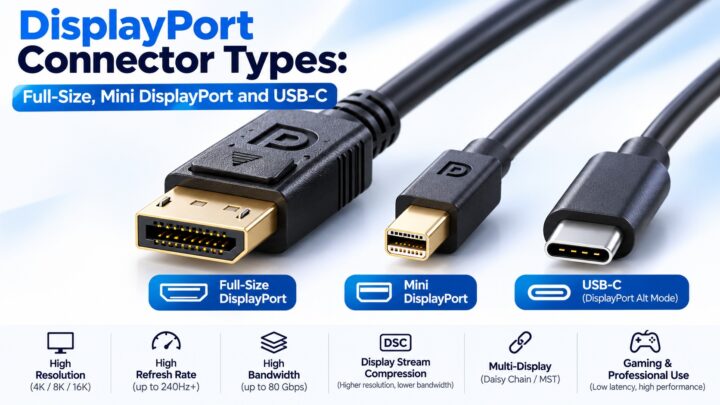
- DisplayPort: a cable certified for the version you use. DisplayPort 1.4 needs a cable rated for it, and DisplayPort 2.1 needs a cable rated for 40 Gbps (UHBR10) or 80 Gbps (UHBR20). An older DisplayPort 1.4 cable limits the connection to DisplayPort 1.4 speeds even when both ends support 2.1.
- HDMI: an Ultra High Speed cable for HDMI 2.1 modes such as 4K at 120 Hz. See our HDMI cable types guide.
Which port should you use?
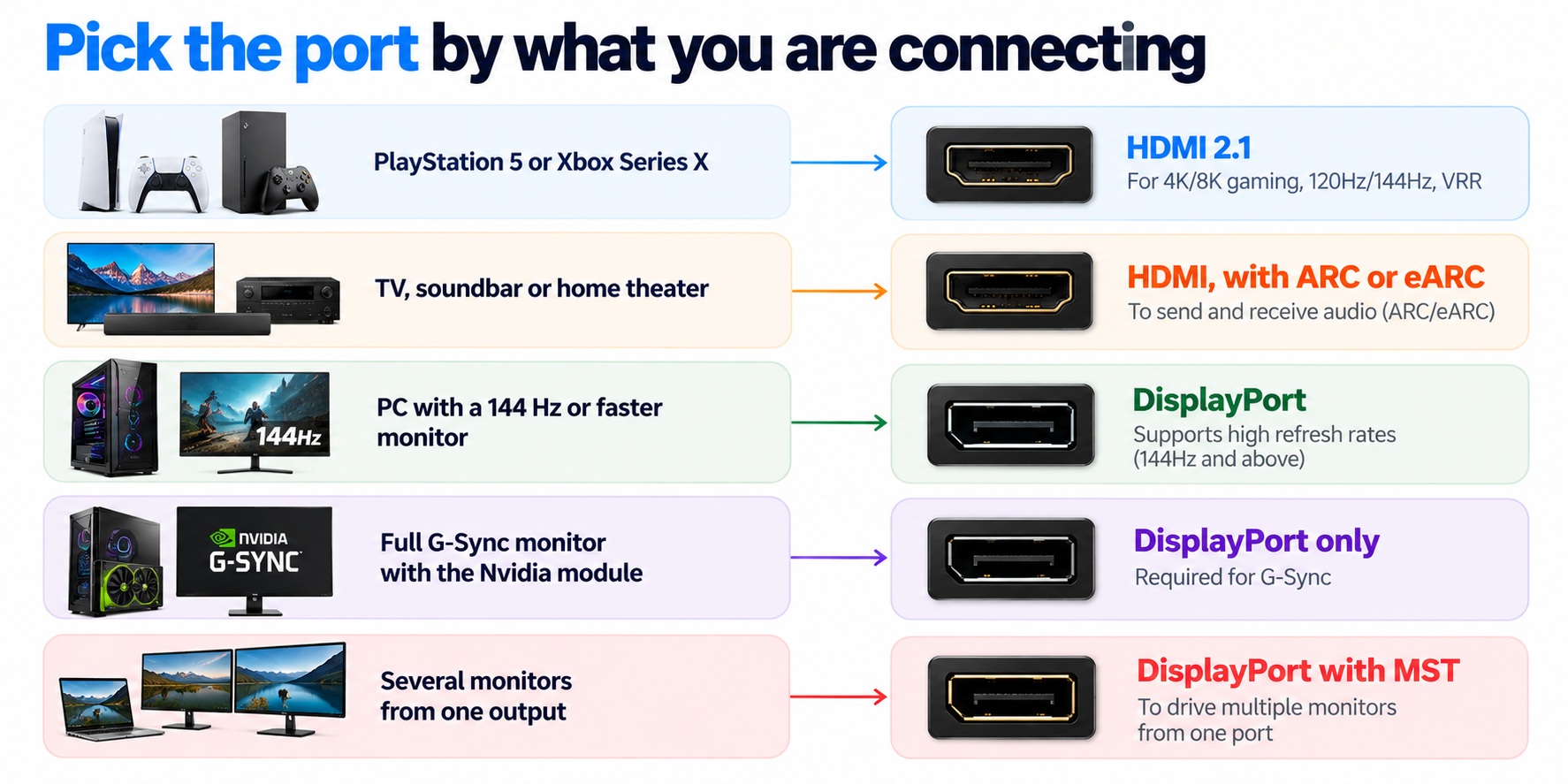
which port to use by setup
If your monitor has both ports and you are using a PC, DisplayPort is usually the safer choice.
Common questions
Is DisplayPort better than HDMI for gaming?
For PC gaming, usually, because of reliable adaptive sync, high refresh rates and daisy-chaining. For consoles, HDMI is the only option.
Can HDMI do 144 Hz?
Yes. HDMI 2.0 handles 1440p at 144 Hz, and HDMI 2.1 handles 4K at 144 Hz. Check your monitor’s HDMI version.
Can HDMI do 4K 144 Hz?
Only with HDMI 2.1 on both the monitor and the graphics card, and with an Ultra High Speed cable.
Does G-Sync work over HDMI?
On many newer G-Sync Compatible monitors with HDMI 2.1, yes. Full G-Sync monitors need DisplayPort.
Does DisplayPort 1.4 support 4K 144 Hz?
Yes, with DSC, as long as both the monitor and the graphics card support it.
Which port does my monitor run fastest on?
Check the manual. Some monitors list different maximum refresh rates for each port.
Can I use both ports at once?
Yes. Most monitors have several inputs, so you can connect a PC to DisplayPort and a console to HDMI and switch between them.
Keep learning
- HDMI vs. DisplayPort: Which Should You Use?
- What Is DisplayPort? A Beginner’s Guide (CON-DisplayPort-001)
- DisplayPort Versions Compared: 1.2 vs. 1.4 vs. 2.1 (CON-DisplayPort-005)
- What Is DisplayPort Multi-Stream Transport (MST)? (CON-DisplayPort-007)
- VRR, ALLM and QMS in HDMI 2.1 Explained
- HDMI 2.1 Bandwidth and Supported Resolutions
1 comment