How Do You Daisy-Chain Monitors With DisplayPort?
Connect your computer to the first monitor’s DisplayPort In port, switch on DisplayPort 1.2 or MST in that monitor’s on-screen menu, then run a DisplayPort cable from its DisplayPort Out port to the DisplayPort In port of the second monitor, and repeat for each further monitor. Finish by choosing “Extend these displays” in your operating system. It works only if your graphics hardware supports DisplayPort 1.2 Multi-Stream Transport (MST) and every monitor except the last has a DisplayPort Out port. Our MST guide explains the technology, and this guide shows the setup step by step.
What do you need?
Check these before you buy cables:
- A source that supports DisplayPort 1.2 MST, such as a graphics card with a DisplayPort 1.2 or newer port, or a laptop with USB-C and DisplayPort Alt Mode or Thunderbolt 3 or later. Update the graphics driver first. Most modern graphics cards from Intel, AMD and Nvidia support MST, but check the model.
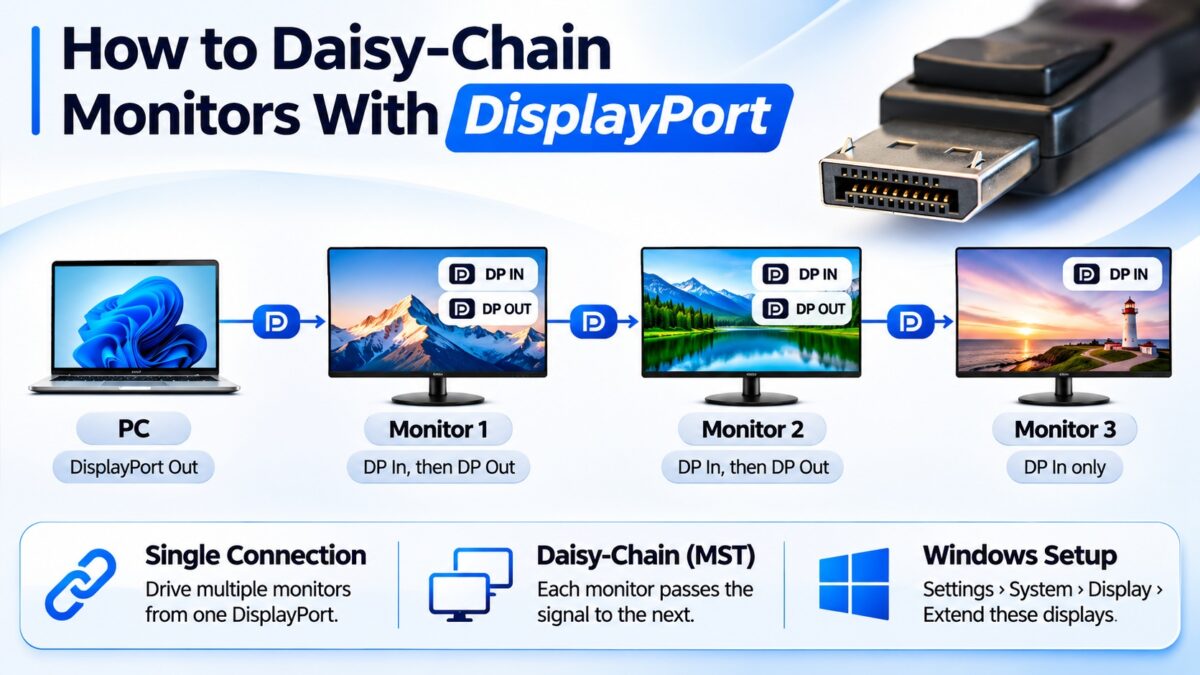
- Monitors with DisplayPort 1.2 and MST. Every monitor except the last needs both a DisplayPort In port and a DisplayPort Out port (often labeled DP Out or MST Out). The last monitor needs only an input.
- DisplayPort cables rated for the resolution and refresh rate you want.
If the first monitor has no DisplayPort Out, you can’t daisy-chain from it, and you would use an MST hub instead.
How to daisy-chain monitors, step by step
- Check compatibility. Confirm that your graphics card or laptop port supports DisplayPort 1.2 MST, and that the monitors have DP In and DP Out ports. Install the latest graphics driver.
- Power on the monitors and, on each one that you will use in the chain, switch on DisplayPort 1.2 (and the MST option, if the menu has one) in the on-screen menu. Many monitors ship with it turned off. On Dell monitors, for example, MST is not enabled by default.
- Connect the computer to the first monitor. Use a DisplayPort cable from the computer’s DisplayPort output to the DP In port of monitor 1.
- Connect monitor 1 to monitor 2. Run a DisplayPort cable from the DisplayPort Out of monitor 1 to the DP In of monitor 2.
- Add more monitors the same way. Connect the DP Out of each monitor to the DP In of the next.
- Check the last monitor’s setting. On some monitors, such as certain Dell models, you are told to leave DisplayPort 1.2 turned off on the last monitor of the chain. Follow your monitor’s manual.
- Extend the displays. In Windows, open Settings, then System, then Display, and choose “Extend these displays”. Arrange the screens to match their physical layout.
How the chain connects
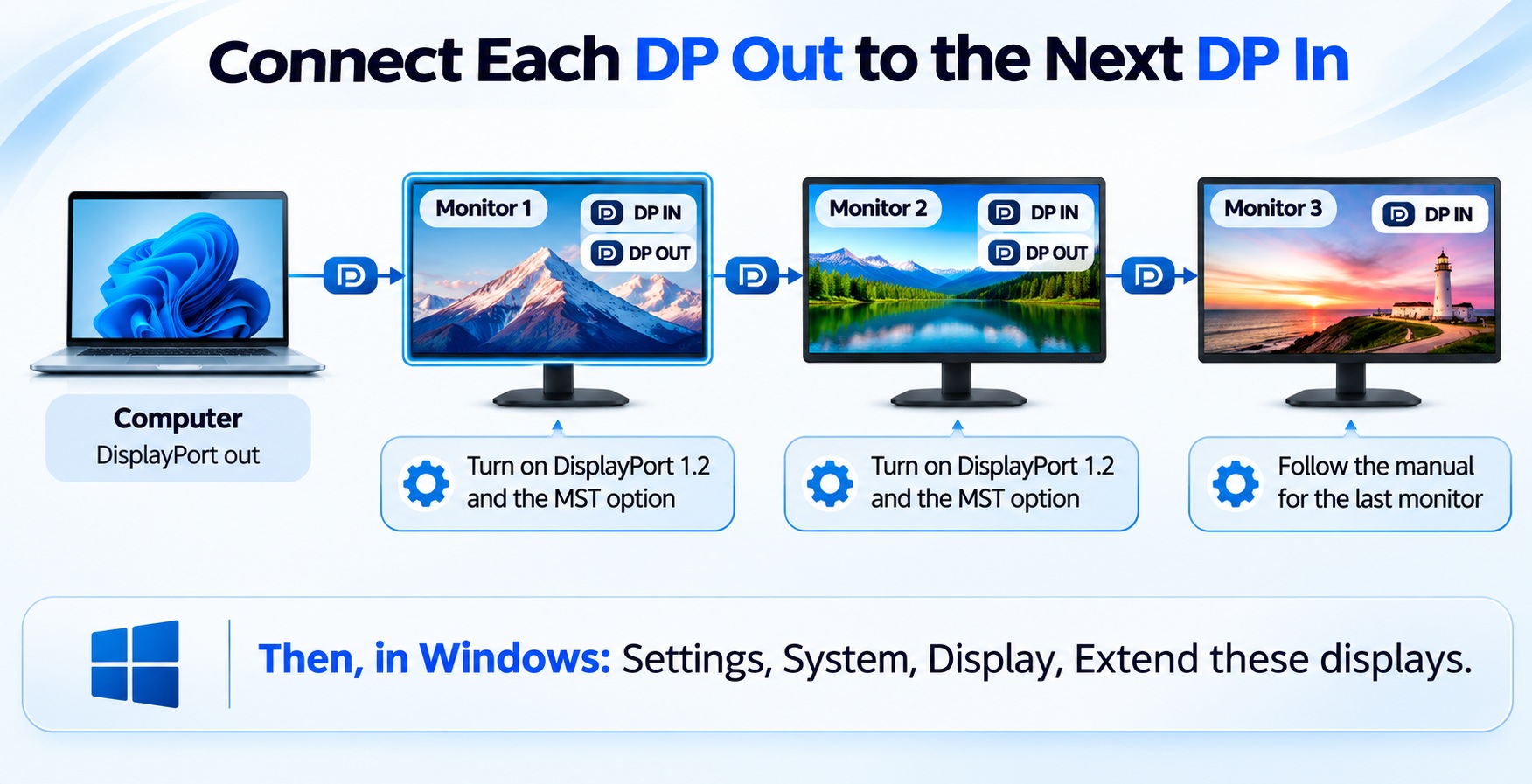
DisplayPort daisy chain · cables and settings
The signal passes through each monitor in turn, so the order of the chain matters.
Can you daisy-chain over USB-C or Thunderbolt?
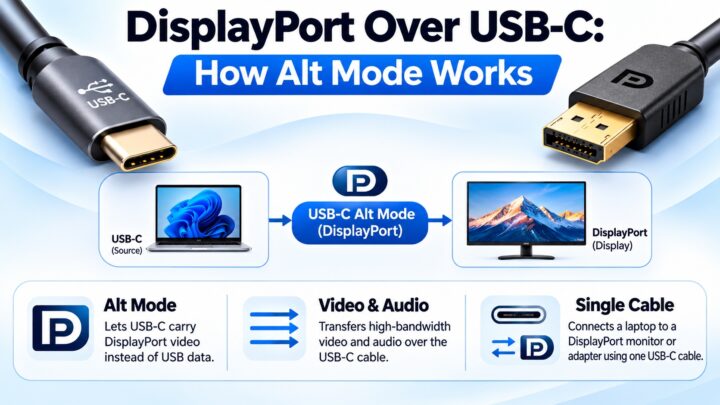
Yes, with the right monitors. A Dell guide lists a PC with DisplayPort 1.2 or later, USB-C with DisplayPort Alt Mode, or Thunderbolt 3 or later, together with monitors that support DisplayPort 1.2 MST, USB-C with DisplayPort Alt Mode or Thunderbolt 3 or later. A typical USB-C chain needs a laptop USB-C port with DisplayPort Alt Mode and MST, a first monitor with a USB-C video input and a DisplayPort Out, and a second monitor with a DisplayPort In. Thunderbolt monitors can also be chained with Thunderbolt cables. The connector alone is not enough: the port and the monitor must support the feature.
Why do my monitors mirror instead of extend?
This is the most common daisy-chain problem. Work through the likely causes in order:
- MST is off. Enter the first monitor’s menu and make sure MST (and DisplayPort 1.2, if it is a separate option) is switched on. One Dell owner found that mirroring continued until a separate “MST” setting was enabled in addition to DisplayPort 1.2.
- The graphics hardware doesn’t support MST, or the driver is out of date. Update the driver and check the graphics card’s specifications. On a system with Intel graphics drivers, both monitors in the chain may need a DisplayPort 1.2 connection.
- The first monitor has no MST-capable DP Out. Use an MST hub instead.
- An adapter is in the chain. One guide says that adapters and converters do not support daisy-chaining, so use DisplayPort cables from end to end.
- The link is stale. Power-cycle the monitors and the computer. If that fails, turn MST off on the first monitor, reboot, and turn it on again.
- The operating system can’t extend MST. Windows generally supports MST for extended desktops. Macs historically have not, so check the current documentation for your computer.
How many monitors can you chain?
The number depends on the bandwidth of the link, on the resolution and refresh rate of the monitors and on the graphics card. Dell notes that it also depends on whether the computer has integrated or discrete graphics. See our MST guide for a table of theoretical limits.
Common questions
Do I need special cables to daisy-chain?
No. Standard DisplayPort cables rated for your resolution work. Use the same quality of cable throughout the chain.
Does the order of monitors matter?
Yes. The signal passes through the first monitor to reach the others, so the first monitor must have DP In, DP Out and MST support.
Can I daisy-chain HDMI monitors?
No. HDMI has no equivalent of MST.
Should MST be on for every monitor?
Set it on for every monitor that passes the signal on. For the last monitor, follow its manual: some makers say to leave DisplayPort 1.2 off on the last monitor.
Does daisy-chaining reduce image quality?
Not by itself. The streams are not compressed, but all the monitors share the bandwidth of the link, which limits resolution and refresh rate.
What if my monitors don’t have DisplayPort Out?
Use a DisplayPort MST hub, which splits one connection into several outputs.
Keep learning
- What Is DisplayPort Multi-Stream Transport (MST)? (CON-DisplayPort-007)
- How DisplayPort Works: Main Link, AUX Channel and Hot Plug (CON-DisplayPort-006)
- DisplayPort Adapters and Converters Explained (CON-DisplayPort-011)
- DisplayPort Versions Compared: 1.2 vs. 1.4 vs. 2.1 (CON-DisplayPort-005)
- DisplayPort Over USB-C: How Alt Mode Works (CON-DisplayPort-008)